PDF to TIFF Converter
Windows 11/10/8/7 | Fully Functional 15 Days Free Trial | Secure Download
Local and Secure Offline Conversion
With our offline PDF file conversion feature, you can ensure that your documents remain on your device and enjoy the added benefit of enhanced security. Since your files are kept locally, you don't have to worry about unauthorized access or potential data breaches. Plus, this feature eliminates the need for an internet connection, making the conversion process accessible and convenient at all times. You can convert your files with peace of mind, knowing that they are kept safe and secure on your device.
Batch Process
Save time and effort by converting multiple PDF files simultaneously with our batch processing feature. Rather than converting each file individually, you can convert them all at once with the touch of a button. This feature is especially useful for users who need to process large quantities of files quickly and efficiently. You can be confident that your conversion needs will be met while enjoying the convenience of batch processing.
Fast and Reliable
Our software is the perfect offline solution for converting PDF to TIFF quickly and efficiently. It boasts high-speed performance and reliability, making it a top choice for users who need to convert their files rapidly and without any lag time. Additionally, this software does not require an internet connection, providing the added benefit of offline functionality, so you can convert your PDFs to TIFFs anytime, anywhere.
Conversion Options
Our tool offers a range of conversion options that allow you to customize your TIFF files according to your specific needs. You can select the TIFF resolution, choose between compressed and uncompressed TIFF formats, and opt for multi-page or single-page TIFF output. These features give you greater control over your TIFF conversion process, enabling you to create high-quality TIFF files that meet your unique requirements.
Merge PDF to TIFF
Our tool can merge PDF files and convert them into TIFF format. With this feature, you can combine multiple PDFs into a single TIFF image, simplifying your document management process. This tool is user-friendly and designed for seamless integration, making it a reliable choice for users who require efficient PDF merging and TIFF conversion.
Drag and Drop
With our drag and drop feature, adding your files to the software is quick and easy. You don't have to navigate through numerous folders to locate them; instead, you can simply select the desired files from your desktop or file explorer and drag them into the software window. This intuitive feature saves you time and effort, making it easier and more efficient to convert your files.
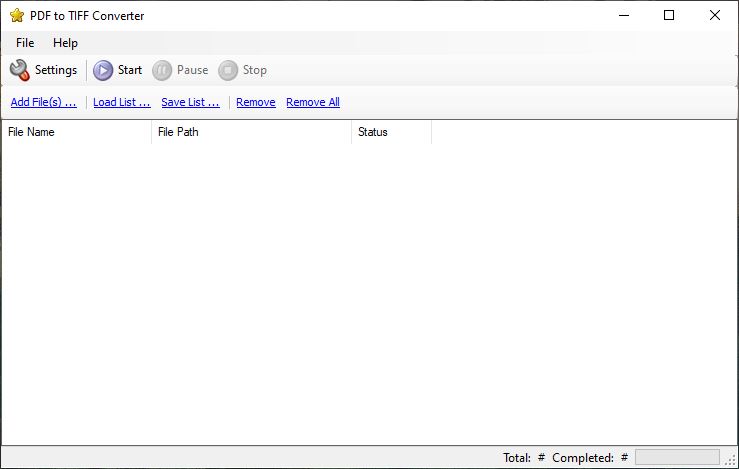
Our PDF to TIFF Converter is a user-friendly Windows application that allows you to easily batch convert PDF files into TIFF images. With the batch mode feature, you can convert thousands of PDF documents to TIFF in just seconds. Using our software is simple and doesn't require much experience. To convert PDF to TIFF, all you have to do is select the folder containing your PDF files, specify which files you want to convert, and click the start button. Our software has a robust and user-friendly interface, which makes it easy even for beginners to convert PDF to TIFF.
To use our PDF to TIFF Converter, first install the program on your computer. You can download a free trial of the program from our website. Once you have installed the program, select the PDF files that you want to batch convert to TIFF format. To add files for conversion, click on the "Add Files" button. You can either drag and drop files from the "Add Files" section or directly from Windows Explorer. From there, you can customize the settings according to your needs, such as the output folder and whether to convert all PDF pages into one TIFF file or individual TIFF files.
Once you have selected the PDF files and customized the settings, you can begin the batch conversion process by clicking the "Start" button. The program will automatically convert the selected PDF files into TIFF format. Once the conversion process is complete, you will find all of the generated TIFF image files in a separate output folder.
The Portable Document Format (PDF) is a widely used file format for storing multi-page text information. In fact, it has become the default document format for many businesses, as it provides data protection and allows for specific rules of use. It also provides a comfortable way to read books on computers. However, there are times when you may need to create TIFF copies of PDF files for mailing, faxing, or printing purposes. The Tagged Image File Format (TIFF) is a commonly used image file type that uses lossless compression, preserving image quality. The process of converting PDF documents into TIFF images can be time-consuming, especially if you have many files to convert and have to convert them one at a time.
Buy License
One Time Purchase | Lifetime Use License | Free Upgrades | 15 Days Money Back Guarantee
ONE Computer License
$24.95 USD
TWO Computers License
$39.95 USD
THREE Computers License
$44.95 USD
FIVE Computers License
$64.95 USD
TEN Computers License
$109.95 USD
UNLIMITED Computers License
$224.95 USD
Order Processing and Security: In order to provide the most secure payment service, we do not process orders directly. We have chosen one of the most reputable ecommerce companies available to do this on our behalf, Bright Market, LLC dba FastSpring. 801 Garden St., Santa Barbara, CA 93101, USA. The order forms are located on secure server and all transactions are processed via the secure SSL protocol ensuring that your private data will remain confidential. We do not receive a copy of your actual payment details (such as Credit card numbers or Wire transfer details). We do not make any of this information available to any third parties. You can learn more about our ecommerce provider's privacy policies by visiting their website.
Automatic Order Delivery: You will get your License Key and Product Download Link immediately after successful purchase. If you have any problem on purchase our product, please feel free to contact us for support. If you've made a payment but have not received a registration information e-mail with license key within a reasonable amount of time, please contact us. Please note that a delay could mean that the e-mail address given in your order form is invalid (due to misspelling, etc.) or registration e-mail was blocked by your spam or junk filters. If you are using a spam filter, please add mailer@fastspring.com to your "white" or "allowed senders" list before ordering.
Contact Us
Technical & Sales - Email Support
support@frameworkteam.com
Please feel free to contact us if you have encountered a problem with our software product, you have a question about our product or purchase related question. If you are a licensed user, please include your order details, so that we can make your problem a priority for our support staff. Please note that the response will take some time (12 - 24 hours).